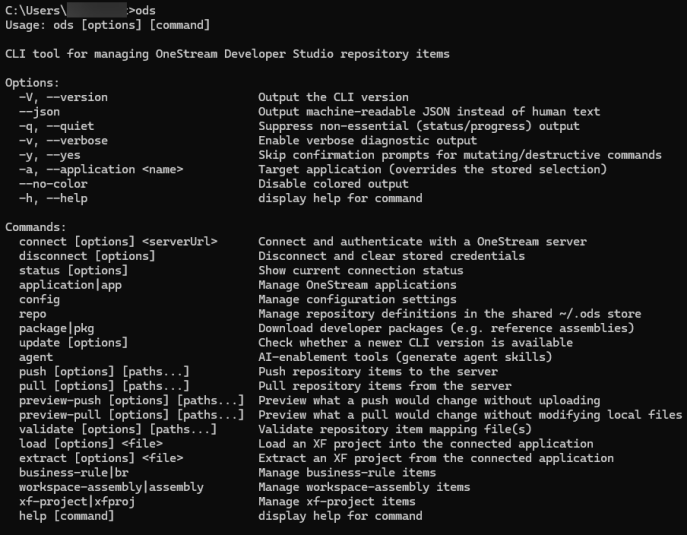
The command line interface (CLI) can be used to perform Developer Studio operations. Actions performed in the CLI are reflected in Developer Studio, enabling you to use your preferred workflow without losing synchronization between tools.
For example, the CLI shares the same server and application context as Developer Studio. If a user connects to a server and opens an application from the CLI, Developer Studio recognizes that connection and updates its context accordingly.
The CLI supports a variety of use cases, including the following scenarios:
-
Create, edit, and remove items
-
Push and pull changes
-
List and filter assemblies or business rules
-
Load and extract XF Projects
-
Configure settings
To display all available commands, enter ods in the CLI. See Command Reference.
AI Skill File
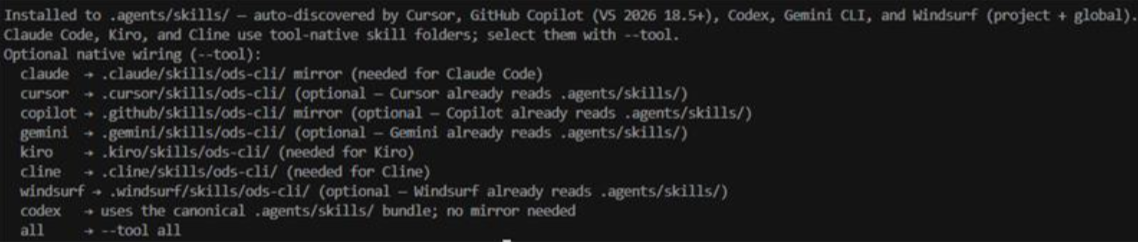
The CLI also provides compatibility designed for AI-powered development. You can download a skill file directly from the CLI that gives your AI tool contextual knowledge of ODS commands. This enables you to pull down business rules or assemblies into new projects set up with IntelliSense, make changes, and push them back to OneStream all within your AI editor.
To download the skill file, enter the following code:
ods agent skill init cliThis command looks for the repository you are currently in. If one is found, it adds or creates the following folder path at the repository root: .agents/skills/ods-cli. If no repository is detected, the folder path is created at the specified folder location.

The --tool flag enables you to wire the skill file directly into your editor. The same repository-detection logic applies. However, the destination folder can vary by tool. Some use the same .agents/skills/ods-cli path, while others have their own dedicated folder. The CLI also generates a wrapper alongside the skill file that your editor natively picks up. Once that wrapper is in place, your AI tool automatically knows how to use the skill without any manual configuration.